mirror of
https://github.com/kubesphere/website.git
synced 2025-12-31 10:52:57 +00:00

177 lines
8.7 KiB
Markdown
177 lines
8.7 KiB
Markdown
---
|
||
title: "Multi-node Installation"
|
||
keywords: 'kubesphere, kubernetes, docker, kubesphere installer'
|
||
description: 'The guide for installing KubeSphere on Multi-Node in development or testing environment'
|
||
|
||
weight: 2220
|
||
---
|
||
|
||
`Multi-Node` installation enables installing KubeSphere on multiple nodes. Typically, use any one node as _taskbox_ to run the installation task. Please note `ssh` communication is required to be established between taskbox and other nodes.
|
||
|
||
- <font color=red>The following instructions are for the default installation without enabling any optional components as we have made them pluggable since v2.1.0. If you want to enable any one, please read [Enable Pluggable Components](../pluggable-components).</font>
|
||
- <font color=red>If your machines in total have >= 8 cores and >= 16G memory, we recommend you to install the full package of KubeSphere by [Enabling Optional Components](../complete-installation)</font>.
|
||
- <font color=red> The installation time depends on your network bandwidth, your computer configuration, the number of nodes, etc. </font>
|
||
|
||
## Prerequisites
|
||
|
||
If your machine is behind a firewall, you need to open the ports by following the document [Ports Requirements](../port-firewall) for more information.
|
||
|
||
## Step 1: Prepare Linux Hosts
|
||
|
||
The following describes the requirements of hardware and operating system. To get started with multi-node installation, you need to prepare at least `three` hosts according to the following requirements.
|
||
|
||
- Time synchronization is required across all nodes, otherwise the installation may not succeed;
|
||
- For `Ubuntu 16.04` OS, it is recommended to select `16.04.5`;
|
||
- If you are using `Ubuntu 18.04`, you need to use the user `root`;
|
||
- If the Debian system does not have the sudo command installed, you need to execute `apt update && apt install sudo` command using root before installation.
|
||
|
||
### Hardware Recommendation
|
||
|
||
- KubeSphere can be installed on any cloud platform.
|
||
- The installation speed can be accelerated by increasing network bandwidth.
|
||
- If you choose air-gapped installation, ensure your disk of each node is at least 100G.
|
||
|
||
| System | Minimum Requirements (Each node) |
|
||
| --- | --- |
|
||
| CentOS 7.4 ~ 7.7 (64 bit) | CPU:2 Core, Memory:4 G, Disk Space:40 G |
|
||
| Ubuntu 16.04/18.04 LTS (64 bit) | CPU:2 Core, Memory:4 G, Disk Space:40 G |
|
||
| Red Hat Enterprise Linux Server 7.4 (64 bit) | CPU:2 Core, Memory:4 G, Disk Space:40 G |
|
||
| Debian Stretch 9.5 (64 bit)| CPU:2 Core, Memory:4 G, Disk Space:40 G |
|
||
|
||
The following section describes an example to introduce multi-node installation. This example shows three hosts installation by taking the `master` serving as the taskbox to execute the installation. The following cluster consists of one Master and two Nodes.
|
||
|
||
> Note: KubeSphere supports the high-availability configuration of the Masters and Etcd nodes. Please refer to [Creating High Availability KubeSphere Cluster](../master-ha) for guide.
|
||
|
||
| Host IP | Host Name | Role |
|
||
| --- | --- | --- |
|
||
|192.168.0.1|master|master, etcd|
|
||
|192.168.0.2|node1|node|
|
||
|192.168.0.3|node2|node|
|
||
|
||
### Cluster Architecture
|
||
|
||
#### Single Master, Single Etcd, Two Nodes
|
||
|
||

|
||
|
||
## Step 2: Download Installer Package
|
||
|
||
**1.** Download `KubeSphere 2.1.1` to your taskbox machine, then unpack it and go to the folder `conf`.
|
||
|
||
```bash
|
||
curl -L https://kubesphere.io/download/stable/latest > installer.tar.gz \
|
||
&& tar -zxf installer.tar.gz && cd kubesphere-all-v2.1.1/conf
|
||
```
|
||
|
||
**2.** Please refer to the following sample to configure all hosts in `hosts.ini`. It is recommended to install KubeSphere using root user. The following is an example configuration for `CentOS 7.5` using root user. Note do not manually wrap any line in the file.
|
||
|
||
> Note:
|
||
>
|
||
> - If you use non-root user with sudo access to install KubeSphere, you need to refer to the example block that is commented out in `conf/hosts.ini`.
|
||
> - If the `root` user of that taskbox machine cannot establish SSH connection with the rest of machines, you need to refer to the `non-root` user example at the top of the `conf/hosts.ini`, but it is recommended to switch `root` user when executing `install.sh`.
|
||
> - master, node1 and node2 are the host names of each node and all host names should be in lowercase.
|
||
|
||
### hosts.ini
|
||
|
||
```ini
|
||
[all]
|
||
master ansible_connection=local ip=192.168.0.1
|
||
node1 ansible_host=192.168.0.2 ip=192.168.0.2 ansible_ssh_pass=PASSWORD
|
||
node2 ansible_host=192.168.0.3 ip=192.168.0.3 ansible_ssh_pass=PASSWORD
|
||
|
||
[kube-master]
|
||
master
|
||
|
||
[kube-node]
|
||
node1
|
||
node2
|
||
|
||
[etcd]
|
||
master
|
||
|
||
[k8s-cluster:children]
|
||
kube-node
|
||
kube-master
|
||
```
|
||
|
||
> Note:
|
||
>
|
||
> - You need to replace each node information such as IP, password with real values in the group `[all]`. The master node is the taskbox so you do not need to add password field here.
|
||
> - The "master" node also takes the role of master and etcd, so "master" is filled under the group`[kube-master]` and the group `[etcd]` respectively.
|
||
> - "node1" and "node2" both serve the role of `Node`, so they are filled under the group `[kube-node]`.
|
||
>
|
||
> Parameters Specification:
|
||
>
|
||
> - `ansible_connection`: Connection type to the host, "local" in the example above means local connection.
|
||
> - `ansible_host`: The name of the host to be connected.
|
||
> - `ip`: The ip of the host to be connected.
|
||
> - `ansible_user`: The default ssh user name to use.
|
||
> - `ansible_become_pass`: Allows you to set the privilege escalation password.
|
||
> - `ansible_ssh_pass`: The password of the host to be connected using root.
|
||
|
||
## Step 3: Install KubeSphere to Linux Machines
|
||
|
||
> Note:
|
||
>
|
||
> - Generally, you can install KubeSphere without any modification, it will start with minimal installation by default.
|
||
> - If you want to enable pluggable feature components installation, modify common.yaml and refer to [Enable Pluggable Components Installation](../pluggable-components) for instructions.
|
||
> - Installer uses [Local volume](https://kubernetes.io/docs/concepts/storage/volumes/#local) based on [openEBS](https://openebs.io/) to provide storage service with dynamic provisioning. For production environment, please [configure supported persistent storage service](../storage-configuration) before installation.
|
||
> - Since the default subnet for Cluster IPs is 10.233.0.0/18, and the default subnet for Pod IPs is 10.233.64.0/18, the node IPs must not use the two IP range. You can modify the default subnets `kube_service_addresses` or `kube_pods_subnet` in the file `conf/common.yaml` to avoid conflicts.
|
||
|
||
**1.** Enter `scripts` folder, and execute `install.sh` using `root` user:
|
||
|
||
```bash
|
||
cd ../cripts
|
||
./install.sh
|
||
```
|
||
|
||
**2.** Type `2` to select multi-node mode to start the installation. The installer will ask you if you have set up persistent storage service or not. Just type `yes` since we are going to use local volume.
|
||
|
||
```bash
|
||
################################################
|
||
KubeSphere Installer Menu
|
||
################################################
|
||
* 1) All-in-one
|
||
* 2) Multi-node
|
||
* 3) Quit
|
||
################################################
|
||
https://kubesphere.io/ 2020-02-24
|
||
################################################
|
||
Please input an option: 2
|
||
|
||
```
|
||
|
||
**3.** Verify the multi-node installation:
|
||
|
||
**(1).** If "Successful" it returned after `install.sh` process completed, then congratulation! you are ready to go.
|
||
|
||
```bash
|
||
successsful!
|
||
#####################################################
|
||
### Welcome to KubeSphere! ###
|
||
#####################################################
|
||
|
||
Console: http://192.168.0.1:30880
|
||
Account: admin
|
||
Password: P@88w0rd
|
||
|
||
NOTE:Please modify the default password after login.
|
||
#####################################################
|
||
```
|
||
|
||
> Note: The information above is saved in a log file that you can view by following the [guide](../verify-components).
|
||
|
||
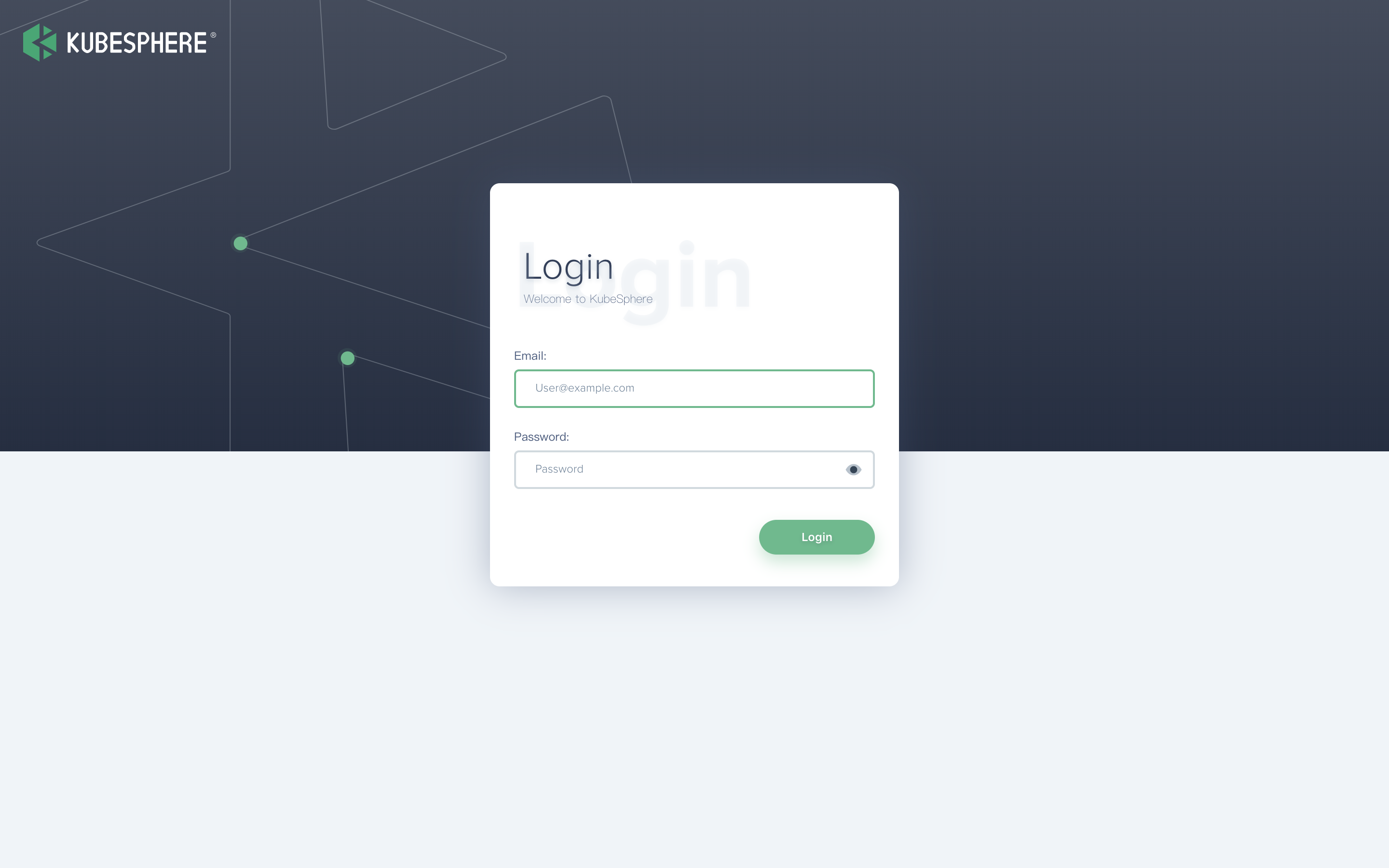
**(2).** You will be able to use default account and password `admin / P@88w0rd` to log in the console `http://{$IP}:30880` to take a tour of KubeSphere. Please change the default password after logging in.
|
||
|
||
|
||
|
||
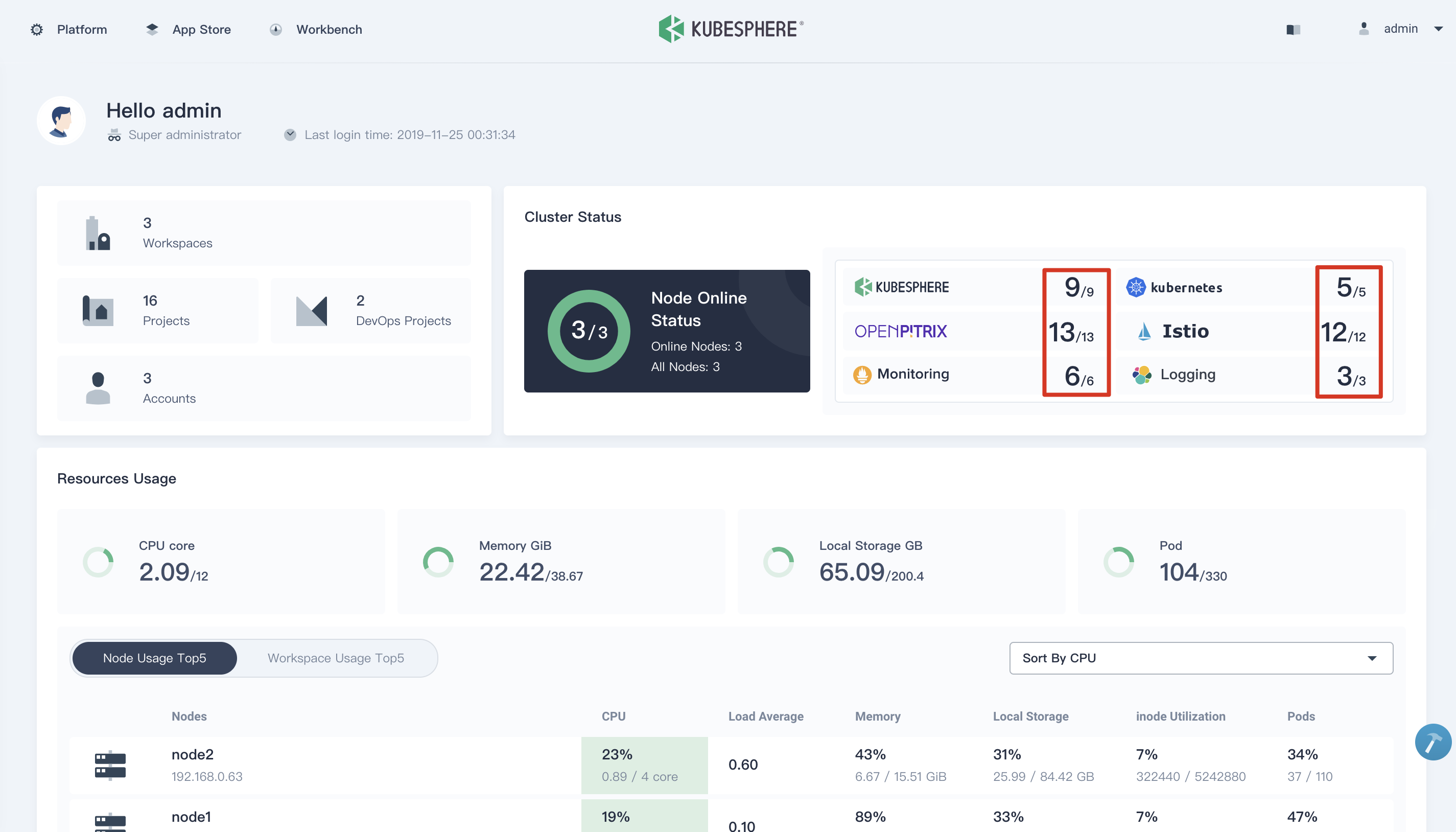
<font color=red>Note: After log in console, please verify the monitoring status of service components in the "Cluster Status". If any service is not ready, please wait patiently untill all components get running up.</font>
|
||
|
||
|
||
|
||
## FAQ
|
||
|
||
The installer has been tested on Aliyun, AWS, Huawei Cloud, QingCloud, Tencent Cloud. Please check the [results](https://github.com/kubesphere/ks-installer/issues/23) for details. Also please read the [FAQ of installation](../../faq/faq-install).
|
||
|
||
If you have any further questions please do not hesitate to file issues on [GitHub](https://github.com/kubesphere/kubesphere/issues).
|